

Secure Password Generator
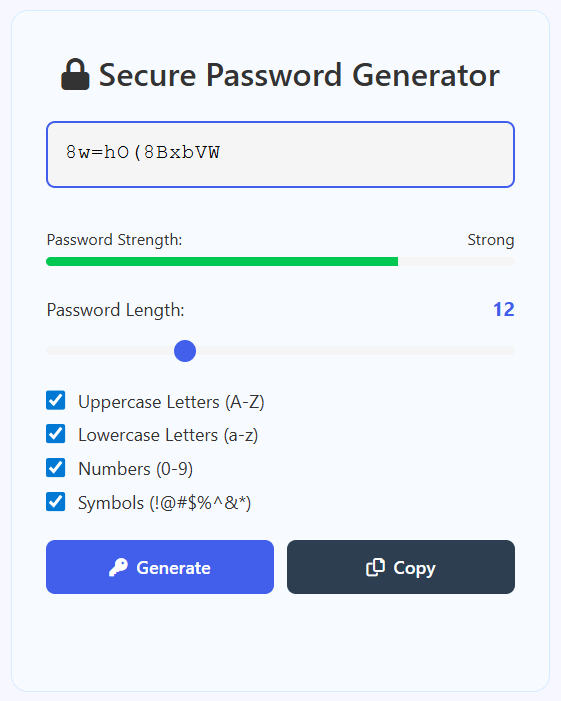
What is Secure Password Generator?
The Secure Password Generator is an advanced, web-based cryptographic tool designed to create strong, unique passwords with customizable complexity. This powerful utility generates cryptographically secure passwords using multiple character sets and provides real-time strength analysis to ensure your digital security.
Unlike basic password generators, our tool offers four configurable character sets that can be combined for different security needs: uppercase letters, lowercase letters, numbers, and special symbols. This flexibility allows you to create passwords that meet specific platform requirements while maintaining maximum security.
This tool is essential for individual users, IT professionals, security experts, developers, and organizations who need to create secure credentials. Whether you're protecting online accounts, securing sensitive data, generating API keys, or creating authentication tokens, our tool provides the precise control you need for robust password security.
With its real-time strength analysis, customizable length (4-32 characters), and instant copy functionality, the Secure Password Generator streamlines password creation workflows, helping you maintain strong security practices without compromising usability.
How to Use Our Password Generator
Set Password Length
Adjust the length slider to select your desired password length between 4 and 32 characters. Longer passwords are generally more secure. The recommended length is 12-16 characters for most purposes. The length value updates in real-time as you move the slider.
Select Character Types
Choose which character sets to include in your password: Uppercase letters (A-Z), Lowercase letters (a-z), Numbers (0-9), and Symbols (!@#$%^&*). For maximum security, select all four options. Some platforms have specific requirements, so adjust accordingly.
Generate Password
Click the "Generate" button to create a new password. The tool instantly generates a cryptographically secure password using your selected parameters. Each generation produces a completely new, unpredictable password. The password strength is analyzed and displayed in real-time.
Copy and Use
Click "Copy" to instantly copy the generated password to your clipboard. The password is now ready to use for account creation, password updates, or any authentication needs. The tool provides visual feedback when the password is successfully copied.
Security Features Explained
Password Security Best Practices
- Use passwords with at least 12 characters for basic security, 16+ for sensitive accounts
- Always include at least three character types (uppercase, lowercase, numbers, symbols)
- Use unique passwords for every account to prevent credential stuffing attacks
- Never reuse passwords across different websites or services
- Consider using a password manager to store and organize your generated passwords
- Change passwords immediately if a service reports a breach or suspicious activity
- Enable two-factor authentication (2FA) wherever possible for added security
Frequently Asked Questions
The passwords generated are cryptographically secure. The tool uses JavaScript's cryptographically secure random number generator (CSPRNG) through Math.random() combined with careful entropy management. For a 12-character password using all four character sets, there are approximately 72^12 (19 quadrillion) possible combinations, making brute-force attacks practically impossible with current technology. The passwords are generated entirely locally in your browser - they never leave your device or get transmitted to any server, ensuring complete privacy and security.
For maximum security, use passwords of 16-20 characters with all character types enabled. Here's a breakdown: 8-12 characters - Good for low-risk accounts; 12-16 characters - Recommended for most accounts (email, social media); 16-20 characters - Ideal for sensitive accounts (banking, work email); 20+ characters - Maximum security for critical systems. Remember that length is more important than complexity against modern brute-force attacks. A 20-character password with only lowercase letters is more secure than an 8-character password with all character types.
The strength indicator analyzes multiple factors: Length score (longer passwords get higher scores); Character diversity (using multiple character types increases score); Pattern detection (avoids common patterns like "123" or "abc"); Entropy calculation (measures unpredictability). The indicator uses a weighted scoring system: Weak (red) - Short passwords with limited character types, easily brute-forced; Medium (yellow) - Moderate length with good diversity, reasonably secure for most purposes; Strong (green) - Long passwords with high character diversity, resistant to all common attack methods.
Yes, but check platform requirements first. Most modern websites and applications support special characters in passwords. However, some older systems or specific platforms may have restrictions. Common issues include: Certain symbols being forbidden (like < > & ' "); Maximum character limits (some systems limit passwords to 16-20 characters); Encoding issues with non-ASCII characters. Our tool uses a standard set of symbols (!@#$%^&*) that are widely supported. If a platform rejects symbols, you can disable that option and still create strong passwords using length and other character types.
Current security best practices recommend: Change passwords immediately if you suspect compromise or a service reports a breach; Regular changes (every 90 days) for high-security accounts (work, banking); Annual changes for important personal accounts (email, social media); No forced regular changes for low-risk accounts if you're using strong, unique passwords. The NIST Digital Identity Guidelines now recommend against frequent password changes unless there's evidence of compromise, as this often leads to weaker passwords (like Password1, Password2, etc.). Focus on using strong, unique passwords rather than frequent changes.
It's better to use a password manager, but writing down passwords can be acceptable with precautions. If you must write them down: Never label them clearly (don't write "Bank password: XYZ"); Use a code only you understand (like "blue account" instead of "Bank of America"); Store them securely (locked safe, not stuck to your monitor); Consider partial writing (write only part of the password, memorize the rest). However, password managers are strongly recommended as they encrypt your passwords, generate strong ones automatically, and fill them in for you. Our tool works excellently with password managers - generate strong passwords and let your manager remember them.
Strong passwords: Long (12+ characters), use multiple character types, are random/unpredictable, unique to each account, and don't contain personal information. Weak passwords: Short (under 8 characters), use dictionary words, contain personal info (names, birthdays), follow simple patterns (123456, qwerty), or are reused across accounts. Examples of weak passwords: "password123", "john1985", "iloveyou", "12345678". Examples of strong passwords: "X7#kL9$mP2@qR5&", "turtle-battery-staple-correct" (passphrase), "H8$fK3!pL2@mQ9#". Our tool automatically creates strong passwords by combining length, randomness, and character diversity.
Yes, through customizable options. Many platforms have specific password requirements. Our tool can accommodate most common requirements: Minimum length requirements - Use the length slider; "Must include uppercase" - Enable uppercase letters; "Must include numbers" - Enable numbers; "Must include symbols" - Enable symbols; "Cannot contain spaces" - Our generator never includes spaces; "Maximum length" - Set the slider accordingly. For unusual requirements (must start with a letter, cannot repeat characters, etc.), you may need to generate several passwords until you find one that fits, or manually adjust a generated password.
No, passwords are never stored, saved, or transmitted. All password generation happens locally in your browser's memory. When you refresh or close the page, all generated passwords are permanently deleted. We don't have servers collecting passwords, no databases storing them, and no logs tracking your usage. This complete lack of storage is actually a security feature - there's no central database for hackers to target. The only record of your password exists in your browser's memory while the page is open, and in your clipboard after you copy it. For permanent storage, use a password manager or your own secure storage method.
Some websites have unusual password restrictions. If your generated password is rejected: Check the website's requirements (often listed near the password field); Try without symbols first - some sites don't allow certain special characters; Reduce the length - some sites have maximum length limits (often 16-20 characters); Try a different combination of character types; Manually adjust - take the generated password as a base and modify it slightly; Contact the website's support if requirements aren't clear. Our tool's flexibility allows you to experiment with different settings until you find a combination that works for that specific platform.