
Image Corner Rounder
Round image corners precisely with live preview
Click or Drag & Drop to Upload
Supports JPG, PNG, GIF, WebP
Corner Radius
Tips
- Use presets for quick styling
- Enable "Sync corners" for uniform rounding
- Drag sliders or click on values for precise control
Preview
What is Advanced Image Corner Rounder?
The Advanced Image Corner Rounder is a sophisticated, web-based image processing tool designed to create professional rounded corners on images with unparalleled precision and control. This advanced utility offers individual corner control, preset styling options, and real-time visualization, transforming standard rectangular images into polished, modern designs with perfectly rounded edges.
Unlike basic corner rounding tools, our application provides independent control over all four corners with a 0-300 pixel radius range, allowing for asymmetric designs, creative shapes, and precise matching to design specifications. The tool includes intelligent corner synchronization, preset configurations, and real-time preview for immediate visual feedback.
This tool is essential for UI/UX designers, web developers, graphic designers, social media managers, and content creators who need to create modern, visually appealing images with rounded corners for websites, mobile apps, presentations, and marketing materials. Whether you're designing app interfaces, creating social media graphics, preparing product images, or enhancing website visuals, our tool provides the precision and flexibility you need.
With its client-side processing, drag-and-drop interface, individual corner control, and privacy-focused design, the Advanced Image Corner Rounder streamlines your design workflow while ensuring your images never leave your device, providing both professional results and complete data security.
How to Use Our Corner Rounding Tool
Upload Your Image
Drag and drop an image directly into the upload area or click to browse for an image file. The tool supports JPG, PNG, GIF, WebP, and other common image formats. Once uploaded, image details including dimensions and file size are displayed automatically.
Adjust Corner Radius
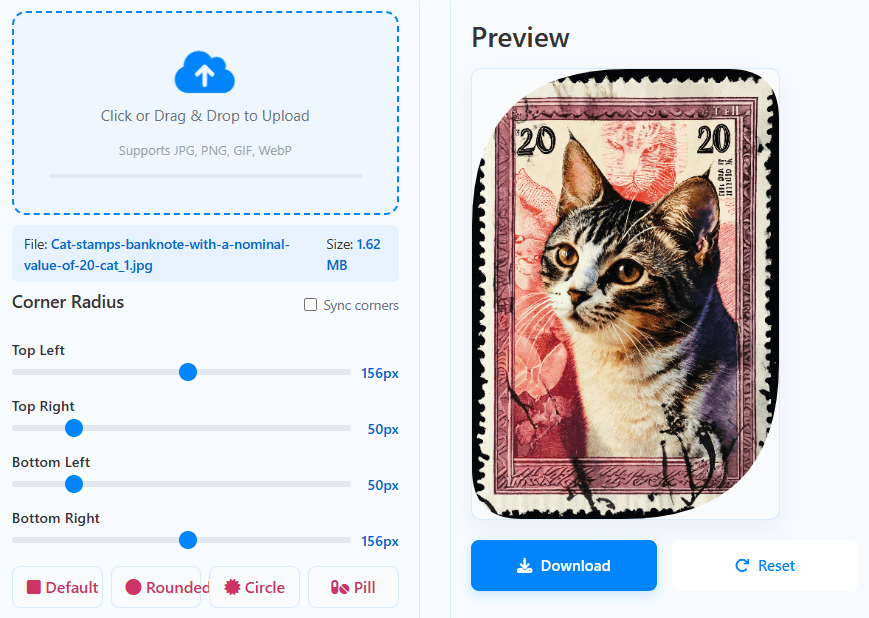
Use the individual sliders to control each corner's radius (Top Left, Top Right, Bottom Left, Bottom Right) from 0-300 pixels. Enable "Sync corners" to apply the same radius to all corners simultaneously. Click on the value display for precise numerical input.
Apply Presets or Custom Settings
Use preset buttons for common styles: "Default" for sharp corners, "Rounded" for standard 50px radius, "Circle" for maximum radius creating a circular image, and "Pill" for capsule-shaped ends. Combine presets with manual adjustments for custom designs.
Preview and Download
View the rounded result in real-time preview. The tool automatically optimizes display size while maintaining original quality. Once satisfied, download the image in PNG format with transparency preserved. Use "Reset" to start over or process additional images.
Advanced Features Explained
Design Best Practices for Rounded Corners
- For UI elements, use consistent radius values across related components for visual harmony
- For profile pictures and avatars, use the "Circle" preset for perfect circular images
- For buttons and interactive elements, consider pill-shaped corners for modern, approachable design
- When rounding product images, ensure important content isn't obscured by excessive corner radius
- For responsive designs, consider using percentage-based radii in CSS rather than fixed pixels
- Always test rounded images on different backgrounds to ensure transparency works correctly
- For print materials, verify corner sharpness at intended viewing size and resolution
Frequently Asked Questions
Corner radius applies rounded edges while preserving the entire rectangular image area with transparency in the corners. Circular cropping removes the corners entirely, creating a true circle shape. Technical differences: Transparency - Rounded corners maintain transparency in corners; circular crops remove corner areas completely; Image data - Corner radius keeps all original pixels; cropping discards corner pixels; File format - Rounded corners require PNG/WebP for transparency; circles can be JPG with white/colored background; CSS compatibility - Corner radius can be replicated with CSS border-radius; circles require different approaches. Our tool creates true rounded corners with transparency, not circular crops. For perfect circles, use maximum radius on a square image with the "Circle" preset.
Optimal radius depends on image size and purpose: Small images (under 100px) - 5-15px for subtle rounding; Medium images (100-300px) - 10-30px for noticeable rounding; Large images (300-600px) - 20-50px for prominent rounding; Extra large images (600px+) - 30-100px for dramatic effect. Common use cases: UI elements/buttons - 4-8px (subtle), 8-12px (medium), 12-20px (prominent); Profile pictures - Use "Circle" preset or 50% of smaller dimension; Product images - 8-16px for clean, modern look; Social media graphics - 20-40px for contemporary style; Website banners - 15-30px for soft edges. The 0-300px range accommodates everything from subtle rounding to extreme circular effects. Use the real-time preview to find the perfect balance for your specific image.
Yes, the tool supports complete asymmetric corner control. Creative possibilities: Top-only rounding - Round top corners only (common for tabs, cards); Bottom-only rounding - Round bottom corners only (unique design element); Diagonal asymmetry - Large radius on top-left + bottom-right, small on others; Graduated rounding - Progressively larger radius around image; Pill shapes - Large radius on left/right sides only (enable sync, adjust top/bottom). Design applications: Speech bubbles - Large radius on one corner; Tags/labels - Rounded on one side only; Creative layouts - Asymmetric designs for visual interest; Brand consistency - Match existing design systems with precise values. Disable "Sync corners" to unlock full asymmetric control, then adjust each slider independently for your unique design.
The "Circle" preset applies the maximum possible radius to create a circular shape within the image bounds. On non-square images: Calculation - Uses 50% of the smaller dimension (width or height) as radius; Visual result - Creates largest possible circle within rectangular bounds; Remaining areas - Corners outside the circle become transparent; Example - On a 400×300 image, radius = 150px (50% of 300px height). This creates a circle with 300px diameter centered in the 400×300 rectangle, with transparent areas on the left and right. For perfect circles: Crop to square first - Use image editing software to make image square; Accept elliptical shape - On rectangles, maximum radius creates oval/ellipse shape; Design consideration - Circular images on rectangles leave transparent side areas. The "Circle" preset gives you the maximum circular effect possible within your image's dimensions.
Quality remains excellent, file size typically increases slightly. Effects: Image quality - No degradation, uses vector-like Bezier curves for perfect edges; File format - Output is PNG to preserve transparency, which is larger than JPG; Transparency addition - Adds alpha channel data in corners; Compression - PNG compression handles rounded edges efficiently. Typical file size changes: Small radius (5-20px) - 5-15% increase; Medium radius (20-100px) - 10-25% increase; Large radius (100px+)/Circle - 20-40% increase; From JPG to PNG - Larger increase due to format change. Optimization tips: Use WebP if supported - Convert PNG to WebP for smaller files with transparency; Optimize after rounding - Use image optimization tools; Consider format needs - If transparency isn't needed, add background color and use JPG. The quality-preserving PNG output ensures perfect rounded corners at the cost of some file size efficiency.
Rounded corner images have numerous design applications: Modern UI design - Cards, buttons, avatars, profile pictures; Website elements - Featured images, product thumbnails, team photos; Mobile applications - App icons, in-app graphics, notification badges; Social media - Profile pictures, post images, story highlights; Marketing materials - Flyers, brochures, digital ads with soft edges; Presentations - Slide images, infographics, diagram elements; E-commerce - Product images, category banners, promotional graphics; Brand identity - Consistent corner styling across all visual assets. Psychological effects: Approachability - Rounded corners feel friendlier and more accessible; Modern aesthetic - Contemporary, clean design appearance; Focus enhancement - Soft edges draw attention to central content; Visual hierarchy - Different radius sizes create depth and organization. Our tool helps implement these design principles with precision.
Yes, the tool preserves and enhances existing transparency. Processing transparent images: Alpha channel preservation - Original transparency is maintained; Corner transparency - New transparent areas are added in rounded corners; Combined transparency - Results have transparency from both original image and new corners; Edge handling - Smooth alpha blending at rounded edges. Common transparent image types: PNG with transparency - Works perfectly, maintains all transparency; GIF with transparency - Works well, though GIF has limited colors; WebP with transparency - Excellent support, modern format; JPG (no transparency) - Adds transparency only in new corner areas. For best results: Start with PNG - Highest quality transparency; Check edge quality - Zoom in to ensure smooth transparency gradients; Test on different backgrounds - Ensure transparency works in various contexts. The tool is ideal for creating rounded versions of logos, icons, and graphics with existing transparency.
Limits are based on browser capabilities, not the tool itself. Practical guidelines: Browser memory - Large images consume significant RAM; Canvas size limits - Browsers restrict maximum canvas dimensions; Performance - Large images with complex rounding process slower. Recommended maximums: Input size - Under 10 megapixels (e.g., 3648×2736); Output preview - Automatically scaled to max 800×450 for performance; Download size - Full resolution preserved in download; Mobile devices - Lower limits due to less RAM. If you encounter issues: Reduce image size before using the tool; Use desktop browser with more memory; Close other tabs to free memory; Process in stages - Round corners, then resize if needed. The tool handles typical photography (8-24 megapixels) well on modern computers but may struggle with extremely large images (50+ megapixels) on slower devices.
Our current tool processes one image at a time for optimal user experience and quality control. For batch processing with consistent settings: Process sequentially - Round and download each image individually; Use consistent settings - Note your radius values for uniform results; Consider batch software - For large volumes (50+ images), use dedicated tools; Browser limitations - Multiple large images may exceed memory limits. Workflow for consistent branding: Create a template - Round one image to perfect specifications; Document the settings - Write down all four radius values; Apply systematically - Use same values for all related images; Quality check samples - Verify first few results match expectations. For occasional batch needs, our single-image tool works well. For regular bulk processing, consider batch conversion software or scripting solutions that can apply consistent corner rounding automatically.
No, all processing happens locally in your browser. This is a 100% client-side tool meaning: Images stay on your device - Never transmitted over the internet; No server involvement - Processing uses HTML5 Canvas API locally; Complete privacy - We cannot access or see your images; No internet required after page loads (works offline); No data storage on our servers. Technical implementation: FileReader API reads files locally; Canvas API processes pixels in browser; Blob URLs handle preview and download; No external libraries that might transmit data. Privacy benefits: Secure for sensitive images; No bandwidth usage for upload/download; Immediate processing without network delay. Your images remain completely private throughout the entire corner rounding process - ideal for proprietary designs, confidential materials, or personal photos.