Image to Grayscale Converter
Click to upload an image
Original Image
Grayscale Image
What is Image to Grayscale Converter?
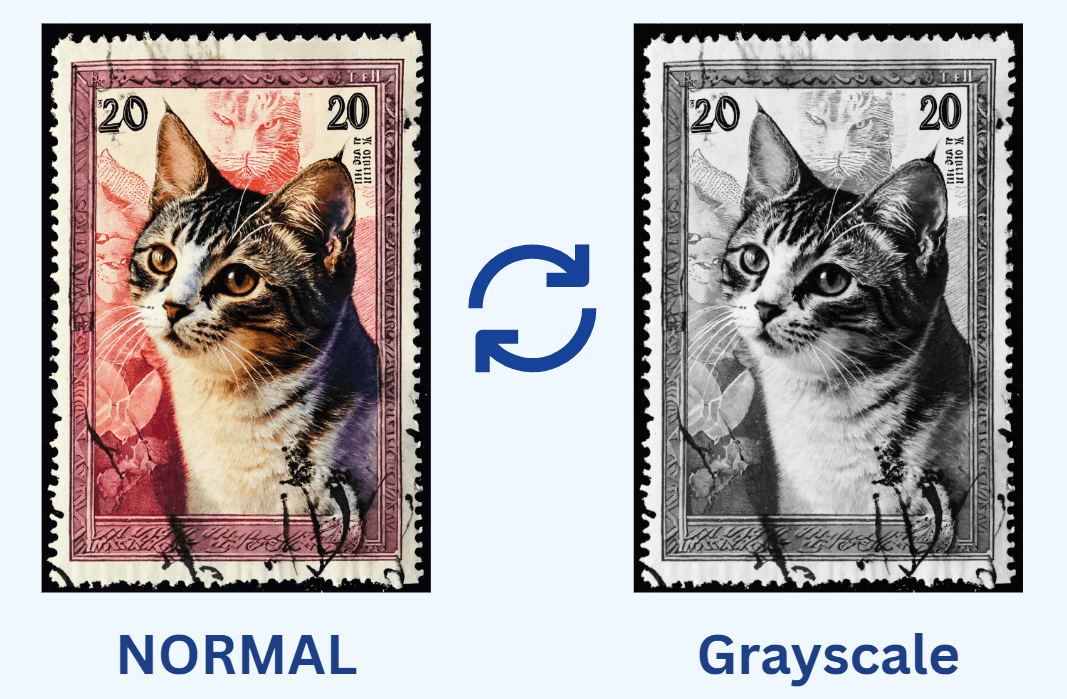
The Image to Grayscale Converter is a powerful, web-based image processing tool designed to transform color images into high-quality grayscale versions using advanced digital image processing techniques. This sophisticated utility provides professional-grade grayscale conversion with precise luminance control, all processed locally in your browser for maximum privacy and performance.
Unlike basic image filters, our tool implements industry-standard luminance formulas to create authentic grayscale conversions that accurately represent human visual perception. The converter uses the ITU-R BT.601 recommendation for luminance calculation, ensuring professional results suitable for photography, graphic design, and digital publishing applications.
This tool is essential for photographers, graphic designers, web developers, content creators, and digital artists who need to convert color images to grayscale for various creative and practical purposes. Whether you're preparing images for print publications, creating monochromatic art, optimizing website graphics, or analyzing image data, our tool provides the precision and control you need.
With its client-side processing, real-time preview, high-quality conversion algorithms, and privacy-focused design, the Image to Grayscale Converter streamlines your workflow while ensuring your images never leave your device, providing both professional results and complete data security.
How to Use Our Grayscale Converter
Upload Your Image
Click the upload area or use the "Select Image" button to choose an image file from your device. The tool supports all common image formats including JPG, PNG, WebP, BMP, and GIF. Your uploaded image will be displayed immediately in the preview area with its original colors preserved.
Preview Original Image
The original color image appears in the preview section, allowing you to verify the correct image has been loaded. The preview maintains the image's original aspect ratio and dimensions, giving you a clear view of what will be converted to grayscale.
Convert to Grayscale
Click the "Convert to Grayscale" button to process your image. The tool uses the standard luminance formula (30% Red + 59% Green + 11% Blue) to calculate grayscale values, creating an authentic black-and-white representation that matches human visual perception of brightness.
Download Result
Once conversion is complete, the grayscale image appears alongside the original for comparison. Use the download button to save the converted image to your device. The downloaded file maintains the original image's resolution and quality while removing color information.
Technical Features Explained
Best Practices for Grayscale Conversion
- For portrait photography, ensure good contrast between subject and background before conversion
- When converting for print, check image resolution (minimum 300 DPI for quality printing)
- For web use, consider optimizing file size after conversion for faster loading
- Use high-quality source images - grayscale conversion can accentuate noise and artifacts
- For artistic effects, experiment with color adjustments before conversion to control tones
- When converting logos/graphics, verify readability in grayscale, especially colored text
- For archival purposes, keep original color versions alongside grayscale conversions
Frequently Asked Questions
Grayscale images contain shades of gray ranging from pure black to pure white, with many intermediate tones. Black and white (or binary images) contain only pure black and pure white pixels with no intermediate tones. Our tool creates true grayscale images with 256 shades of gray (8-bit), which is the standard for most applications. The key difference: Grayscale - Continuous tones, smooth gradients, photographic quality; Black and white - Harsh contrast, limited to two colors, posterized appearance. Most "black and white" photography is actually grayscale. Our converter uses luminance values to create authentic grayscale images that preserve detail and tonal range from the original color image.
The luminance formula (Gray = 0.299R + 0.587G + 0.114B) is based on human visual perception. The human eye is most sensitive to green light (59% contribution), moderately sensitive to red light (30% contribution), and least sensitive to blue light (11% contribution). This formula, standardized as ITU-R BT.601, creates grayscale images that match how humans perceive brightness. Alternative methods like simple averaging (R+G+B/3) or desaturation often produce inferior results because they don't account for human visual sensitivity. Our tool uses the professional luminance formula to ensure: Natural-looking results matching human perception; Proper tonal relationships between colors; Industry-standard output compatible with professional workflows.
Yes, grayscale images are typically smaller but the reduction depends on the format: PNG grayscale - Significant reduction (removes color channels); JPG grayscale - Moderate reduction (color information compressed anyway); WebP grayscale - Good reduction with modern compression. Actual size reduction: Theoretical maximum - Grayscale has 1 channel vs RGB's 3 channels (67% smaller); Real-world reduction - Typically 30-50% smaller due to compression; Format matters - Lossless formats show greater reduction than lossy. Our tool outputs in PNG format which supports true grayscale mode, potentially reducing file size significantly compared to color PNGs. For web optimization, you may want to compress the grayscale image further using image optimization tools.
Our current tool processes one image at a time to ensure quality and performance. For batch processing multiple images: Process sequentially - Convert and download each image individually; Consider automation - For large batches (50+ images), use desktop software like Photoshop, GIMP, or ImageMagick; Browser limitations - Multiple large images may exceed browser memory limits. Tips for multiple images: Use consistent settings for uniform results; Organize files before starting; Check quality on sample images first. For occasional batch needs, our single-image converter works well. For professional bulk processing, specialized batch conversion software is more efficient. Future versions may include batch capabilities based on user demand.
Input formats (browser-dependent): Common formats - JPEG/JPG, PNG, WebP, BMP, GIF; Browser support - Most modern browsers support these formats; Maximum size - Limited by browser memory (typically 2-4MB works well). Output format: Default - PNG (lossless, preserves quality); Alternative - You can convert to other formats using image editing software after downloading. PNG output advantages: Lossless quality - No compression artifacts; Grayscale mode - True 8-bit grayscale support; Transparency support - If original has transparency; Wide compatibility - Works everywhere. If you need JPG output: Convert PNG to JPG using any image editor; Adjust compression for desired quality/size balance. The tool focuses on quality conversion first, format flexibility second.
Yes, the tool preserves original resolution and maintains quality. Technical details: Resolution preservation - Output has same pixel dimensions as input; No resampling - Pixels are converted, not resized; Lossless processing - Uses HTML5 Canvas with precise color calculations; No compression artifacts - Unless original JPG already had them. Quality considerations: Source quality matters - Grayscale conversion can make existing artifacts more visible; Bit depth - Converts to 8-bit grayscale (256 shades), sufficient for most purposes; Dithering - Not applied (creates smooth gradients); Gamma correction - Preserves original gamma. For professional use: Start with high-quality source; Check for banding in smooth gradients; Verify tonal range after conversion. The tool aims for mathematically accurate conversion without quality degradation.
Grayscale images have many practical and artistic applications: Print publications - Newspapers, books, academic papers where color printing is expensive; Artistic expression - Black and white photography, fine art, conceptual work; Web design - Hero images, backgrounds, UI elements where color might distract; Accessibility - Testing color contrast, simulating color blindness; Archival - Long-term preservation where color may fade; Technical analysis - Computer vision, image processing, pattern recognition; Social media - Aesthetic posts, profile pictures, artistic content; Documentation - Manuals, instructions where color isn't essential; Product design - Focusing on form and texture without color influence. Our tool helps create high-quality grayscale images for all these applications with professional results.
Our current tool provides standard grayscale conversion without brightness/contrast adjustments. For adjusted results: Pre-process in photo editor - Adjust color image before conversion; Post-process after conversion - Use image editing software on grayscale result; Multiple conversion approach - Convert, adjust in simple editor, re-save. Recommended workflow: Convert with our tool for clean grayscale base; Use free editors like GIMP, Paint.NET, or online tools for adjustments; Professional software like Photoshop or Lightroom for advanced control. Adjustment considerations: Brightness - Affects overall lightness/darkness; Contrast - Increases separation between tones; Curves/Levels - Precise tonal control; Dodging/burning - Selective brightness adjustment. Our tool focuses on accurate conversion, leaving creative adjustments to dedicated editing software.
Limits are based on browser capabilities, not the tool itself: Browser memory - Large images consume significant RAM; Canvas size limits - Browsers restrict maximum canvas dimensions; Performance - Large images process slower. Practical guidelines: Recommended maximum - 10 megapixels (e.g., 3648×2736); Safe maximum - 5 megapixels for most devices; Mobile devices - Lower limits due to less RAM. If you encounter issues: Reduce image size before conversion; Use desktop browser with more memory; Close other tabs to free memory; Split very large images into smaller sections. The tool handles images up to browser limits, but extremely large images (50+ megapixels) may fail or cause browser crashes. For typical photography (8-24 megapixels), the tool works well on modern computers.
No, all processing happens locally in your browser. This is a 100% client-side tool meaning: Images stay on your device - Never transmitted over the internet; No server involvement - Processing uses HTML5 Canvas API locally; Complete privacy - We cannot access or see your images; No internet required after page loads (works offline); No data storage on our servers. Technical implementation: FileReader API reads files locally; Canvas API processes pixels in browser; Blob URLs handle preview and download; No external libraries that might transmit data. Privacy benefits: Secure for sensitive images; No bandwidth usage for upload/download; Immediate processing without network delay. Your images remain completely private throughout the entire conversion process.