

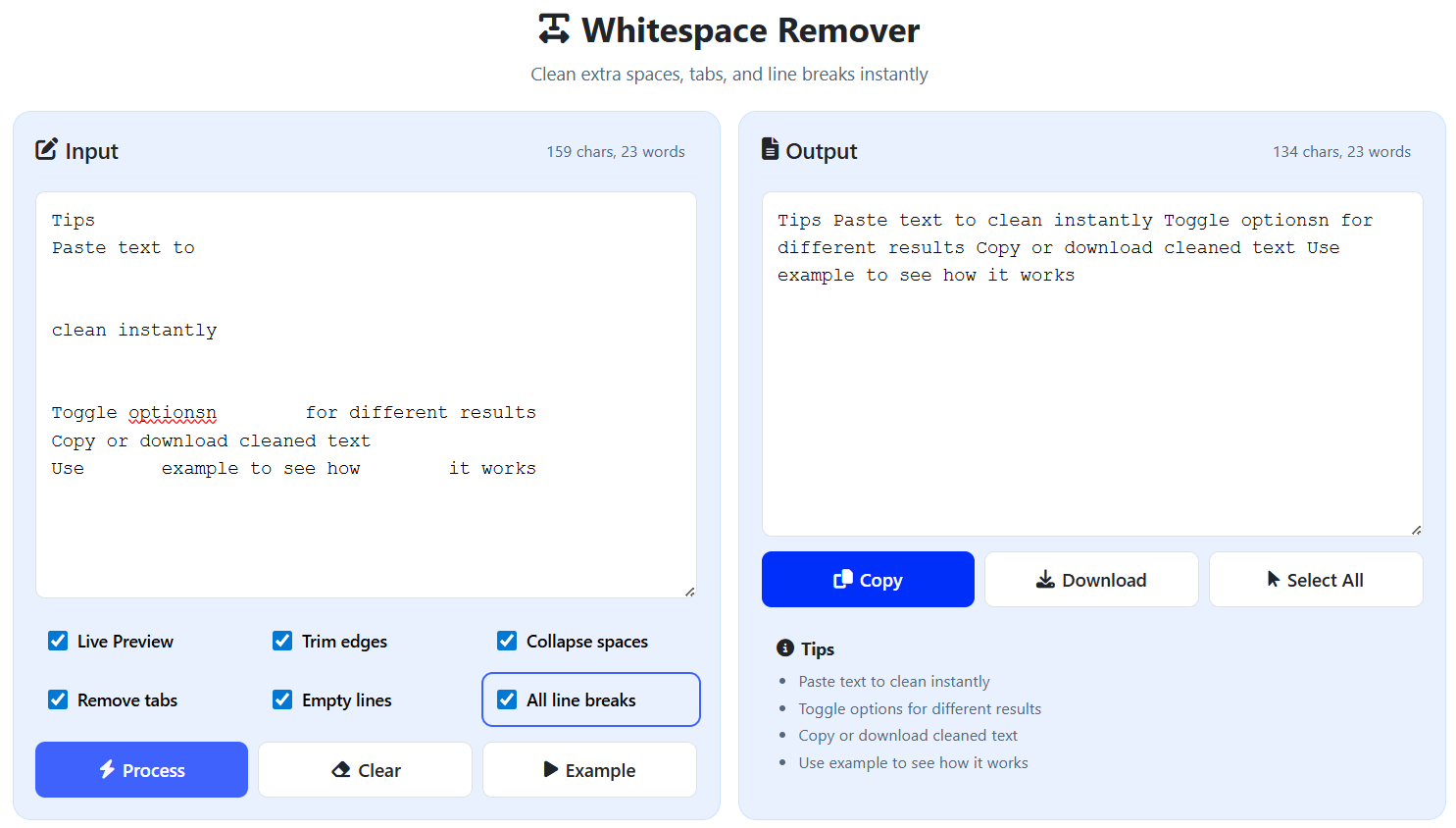
Whitespace Remover
Clean extra spaces, tabs, and line breaks instantly
Tips
- Paste text to clean instantly
- Toggle options for different results
- Copy or download cleaned text
- Use example to see how it works
What is Whitespace Remover Tool?
The Whitespace Remover Tool is an advanced, web-based utility designed to clean and optimize text by removing unnecessary whitespace characters including extra spaces, tabs, and line breaks. This powerful tool provides precise control over text formatting with multiple cleaning options and real-time preview capabilities.
Unlike basic text cleaners, our tool offers six configurable cleaning options that can be combined for different results: trim edges, collapse spaces, remove tabs, eliminate empty lines, handle line breaks, and live preview. This flexibility makes it suitable for various text processing needs from simple formatting to complex data cleaning.
This tool is essential for writers, developers, data analysts, content creators, and professionals who work with text regularly. Whether you're cleaning copied text from PDFs, formatting code, preparing data for processing, or optimizing content for different platforms, our tool provides the precise control you need.
With its intuitive interface, real-time processing, and multiple output options, the Whitespace Remover Tool streamlines text cleaning workflows, saving time and ensuring consistency in your text formatting tasks.
How to Use Our Whitespace Remover
Paste Your Text
Copy and paste your text into the input area. The text can come from any source - documents, websites, PDFs, code files, or data exports. The tool automatically analyzes your text and displays character and word counts.
Configure Cleaning Options
Select the cleaning options that match your needs. Choose between trimming edges, collapsing multiple spaces, removing tabs, eliminating empty lines, handling line breaks, and enabling live preview. Options can be combined for custom results.
Process and Review
Click "Process" to clean your text instantly, or use "Live Preview" for automatic updates as you type. Review the cleaned text in the output area, which shows both the cleaned content and updated statistics including character and word counts.
Export or Use
Copy the cleaned text to clipboard, download it as a text file, or select all for further processing. Use the "Example" button to see how the tool works with sample text, and "Clear" to reset both input and output areas.
Cleaning Options Explained
Pro Tips for Optimal Results
- Use "Live Preview" for quick edits and real-time feedback on your text cleaning
- Combine "Trim Edges" with "Collapse Spaces" for most general text cleaning tasks
- Use "Remove Tabs" when cleaning code or data exported from spreadsheets
- "Empty Lines" is perfect for cleaning text copied from PDFs or formatted documents
- Use "All Line Breaks" when you need to convert multi-line text into a single paragraph
- Test different option combinations using the example text to understand how each works
Frequently Asked Questions
Our tool removes multiple types of whitespace: Extra spaces (multiple consecutive spaces), Tab characters (\\t), Leading/trailing spaces (spaces at beginning/end of lines), Empty lines (lines containing only whitespace), and Excessive line breaks (multiple consecutive line breaks). You can control each type separately through the cleaning options to achieve exactly the results you need.
By default, the tool preserves intentional formatting unless you select specific options. For code cleaning: Don't enable "Remove Tabs" if you want to keep code indentation; Don't enable "Trim Edges" if you want to preserve leading spaces for indentation; Be careful with "All Line Breaks" as it will flatten your code structure. For code-specific cleaning, we recommend using only "Collapse Spaces" and "Empty Lines" options, and always review the output before using it.
Absolutely! The tool is excellent for data cleaning tasks. For CSV/Excel data: Use "Trim Edges" to clean up inconsistent cell data; Use "Collapse Spaces" to fix cells with multiple spaces; Use "Remove Tabs" to clean tab-separated values; Use "Empty Lines" to remove blank rows. For best results, copy and clean data in small batches, and always verify the cleaned data matches your expected format before importing back into your spreadsheet.
The tool can handle very large texts efficiently. There's no hard limit on text length - it processes text using optimized JavaScript algorithms that work well with documents of thousands or even tens of thousands of words. However, for optimal performance and usability, we recommend processing extremely long documents in sections of 10,000-20,000 characters at a time. The real-time preview works best with texts under 5,000 characters for immediate feedback.
Yes! The tool fully supports Unicode characters, special symbols, emojis, and text in any language. Our cleaning algorithms specifically target whitespace characters (spaces, tabs, line breaks) while preserving all other characters including accented letters (é, ñ, ü), special symbols (©, ®, ™), emojis (😀, 🚀, ✅), and text in non-Latin scripts (Arabic, Chinese, Cyrillic, etc.). The tool works equally well with English and multilingual content.
The tool provides multiple safety features: Original text remains in the input area, so you can always see what you started with; Output is separate from input, so your source text is never modified; No automatic overwriting - you choose when to copy or download results; Clear button resets both areas if needed. For maximum safety, we recommend copying the cleaned text to a new document rather than overwriting your original source until you're satisfied with the results.
"Empty Lines" removes only lines that contain nothing but whitespace (spaces/tabs), preserving intentional line breaks between paragraphs. "All Line Breaks" converts every line break into a space, effectively turning multi-line text into a single continuous paragraph. Use "Empty Lines" when you want to clean up text but keep its paragraph structure. Use "All Line Breaks" when you need to create a single block of text (like for meta descriptions, social media posts, or single-line data fields).
Yes! Once the page is loaded, the tool works completely offline. All text processing happens locally in your browser using JavaScript - no data is sent to servers. This makes it perfect for use in locations with limited or no internet connectivity, for processing sensitive or confidential text, or for users with privacy concerns. You can even save the page locally for permanent offline access.
Absolutely! The Whitespace Remover Tool is fully responsive and works perfectly on smartphones and tablets. The interface adapts to smaller screens with appropriately sized touch targets, readable fonts, and optimized layout. All features including copy, download, and option toggles work seamlessly on mobile devices. It's particularly useful for cleaning text on-the-go from mobile documents or emails.
100% secure! Your text never leaves your device. All processing happens locally in your browser - no data is transmitted to our servers or any third parties. We don't store, analyze, or have access to any text you process. This makes the tool ideal for sensitive documents, confidential business information, personal communications, or any text you want to keep completely private. Your text processing remains entirely between you and your device.