

What is Smart Image Resizer?
The Smart Image Resizer is a sophisticated, web-based image processing tool designed to resize images with precision, flexibility, and professional quality. This advanced utility provides intelligent dimension control, aspect ratio preservation, and high-quality scaling algorithms, all processed locally in your browser for maximum privacy and performance.
Unlike basic image resizers, our tool offers intelligent aspect ratio management with automatic dimension calculation, ensuring your images maintain their original proportions unless specifically overridden. The resizer uses high-quality scaling algorithms that preserve image sharpness and detail while adjusting dimensions to your exact specifications.
This tool is essential for web developers, graphic designers, social media managers, photographers, and content creators who need to optimize images for various platforms and purposes. Whether you're preparing images for website optimization, social media posting, email campaigns, print materials, or storage reduction, our tool provides the precise control you need for professional results.
With its client-side processing, real-time preview, intelligent dimension management, and privacy-focused design, the Smart Image Resizer streamlines your image optimization workflow while ensuring your images never leave your device, providing both professional results and complete data security.
How to Use Our Image Resizer
Upload Your Image
Click the upload area or use the "Choose Image" button to select an image from your device. The tool supports all common image formats including JPG, PNG, WebP, BMP, and GIF. Once uploaded, the original image displays with its current dimensions automatically detected and displayed.
Set Target Dimensions
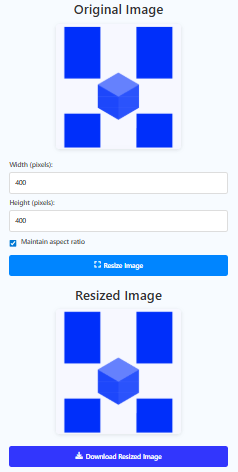
Enter your desired width and height in pixels. The tool automatically detects and displays the original dimensions as starting values. Enable "Maintain aspect ratio" to ensure proportional scaling - when checked, changing one dimension automatically calculates the other to preserve the original image proportions.
Resize Image
Click "Resize Image" to process your image. The tool uses high-quality scaling algorithms (bilinear interpolation with smoothing) to resize the image while preserving details and minimizing artifacts. The resized image appears alongside the original for immediate comparison of results.
Download Result
Once resizing is complete, use the download button to save the optimized image to your device. The downloaded file maintains image quality while matching your specified dimensions. Compare file sizes and visual quality between original and resized versions before finalizing.
Advanced Features Explained
Image Resizing Best Practices
- For web use, downscale large images rather than upscaling small ones to maintain quality
- When maintaining aspect ratio, set only width or height and let the tool calculate the other dimension
- For print materials, ensure sufficient resolution (minimum 300 DPI at final size)
- When upscaling significantly, expect some quality loss - consider using specialized upscaling software
- For social media, check platform-specific dimensions before resizing
- Always keep original high-resolution versions for future editing needs
- Consider file format optimization after resizing for web delivery
Frequently Asked Questions
Aspect ratio is the proportional relationship between an image's width and height, expressed as width:height (e.g., 16:9, 4:3, 1:1). Maintaining aspect ratio is important because: Prevents distortion - Images don't appear stretched or squashed; Preserves composition - Maintains the photographer's intended framing; Professional standards - Most platforms expect specific aspect ratios; Visual consistency - Creates uniform appearance across multiple images. Common aspect ratios: 1:1 - Square (Instagram); 16:9 - Widescreen (YouTube, presentations); 4:3 - Standard (photography, monitors); 3:2 - 35mm film (DSLR cameras). Our tool automatically maintains aspect ratio by default, calculating the appropriate dimension when you change width or height.
Resizing scales the entire image proportionally to new dimensions, preserving all content but changing the image size. Cropping removes outer portions of the image, changing both dimensions and composition while keeping the remaining pixels at original size. Key differences: Content preservation - Resizing keeps everything, cropping removes content; Pixel quality - Resizing changes pixel dimensions, cropping doesn't; Aspect ratio - Resizing can maintain it, cropping often changes it; Use cases - Resizing for size optimization, cropping for composition improvement. Our tool focuses on resizing - if you need cropping, use a dedicated cropping tool first, then resize the cropped image. Some images benefit from both: crop to improve composition, then resize to optimal dimensions.
Some quality loss is inevitable when upscaling, but our tool minimizes it. When you increase image dimensions: Pixel information is interpolated - Software creates new pixels based on existing ones; Limitations exist - You cannot create detail that wasn't in the original; Upscaling factors: 2x or less - Good results with minimal quality loss; 2x-4x - Noticeable softening, best for quick previews; 4x+ - Significant quality degradation, not recommended. Our tool uses high-quality interpolation (bilinear with smoothing) to produce the best possible upscaled results. For professional upscaling, consider: AI upscaling tools (Topaz Gigapixel, Adobe Sensei); Specialized software with advanced algorithms; Vector conversion for logos/illustrations. For most purposes, avoid upscaling beyond 200% of original size.
Platform-specific optimal sizes (width in pixels): Instagram Feed - 1080×1080 (1:1) or 1080×1350 (4:5); Facebook Post - 1200×630 (1.91:1); Twitter Post - 1200×675 (16:9); LinkedIn Post - 1200×627 (1.91:1); Pinterest Pin - 1000×1500 (2:3); YouTube Thumbnail - 1280×720 (16:9); Website Banner - 1920×1080 (16:9); Email Newsletter - 600×400 (3:2); Mobile Wallpaper - 1080×1920 (9:16). Important considerations: File size limits - Most platforms compress large files; Loading speed - Web images should be under 1MB; Retina displays - Double dimensions for high-DPI screens. Our tool helps you achieve these exact dimensions while maintaining quality and proper aspect ratios.
Image resizing typically reduces file size when downscaling, but the relationship isn't linear. Factors affecting file size: Pixel count - Reducing dimensions reduces pixels, decreasing size; Compression - Resized images may compress differently; Format - Different formats respond differently to resizing; Content complexity - Detailed images compress less than simple ones. General guidelines: Downscaling 50% - File reduces to 25-40% of original; Downscaling 25% - File reduces to 50-70% of original; Upscaling - File size increases, but quality doesn't improve proportionally. Our tool outputs in PNG format which maintains quality. For web optimization after resizing: Convert to JPG/WebP with appropriate compression; Use image optimization tools for further size reduction; Balance quality vs size based on use case.
Limits are based on browser capabilities, not the tool itself. Practical limits: Input size - Depends on browser memory (typically 2-4GB total); Output size - Maximum 10,000×10,000 pixels (as specified in the tool); Performance - Large images process slower. Recommended maximums: Input images - Under 10 megapixels (e.g., 3648×2736); Output dimensions - Under 5,000 pixels per side for good performance; Mobile devices - Lower limits due to less RAM. If you encounter issues: Reduce source image size before using the tool; Use desktop browser with more memory; Process in stages for very large images; Consider specialized software for massive images. The tool handles typical photography (8-24 megapixels) well on modern computers but may struggle with extremely large images (50+ megapixels).
Our tool uses high-quality algorithms to preserve quality, but some factors affect results: Downscaling - Generally maintains or improves perceived sharpness (pixels become denser); Upscaling - Reduces sharpness (pixels become spread out); Interpolation method - We use bilinear interpolation with smoothing for best results; Original quality - High-quality originals produce better resized results. Quality preservation techniques: Sharpening after resize - Can restore some lost detail; Gradual resizing - Multiple small steps sometimes better than one large step; Maintain aspect ratio - Prevents distortion that reduces perceived quality; Check at 100% zoom - Assess quality at actual pixel level. For critical applications: Test different dimensions to find optimal balance; Compare before/after using our side-by-side preview; Consider professional software for maximum quality preservation.
Our current tool processes one image at a time to ensure quality control and user interface clarity. For batch processing: Process sequentially - Resize and download each image individually; Use consistent settings - Note your width/height values for uniform results; Consider batch software - For large volumes (50+ images), use dedicated tools; Browser limitations - Multiple large images may exceed memory limits. Workflow for multiple images: Create a template - Resize one image to perfect dimensions; Note the settings - Write down width/height values; Apply to all images - Use same settings for consistency; Quality check samples - Verify first few results before processing all. For occasional batch needs, our single-image resizer works well. For regular bulk processing, consider batch conversion software or scripting solutions.
Input formats (browser-dependent): Common formats - JPEG/JPG, PNG, WebP, BMP, GIF; Browser compatibility - Most modern browsers support these formats; Maximum file size - Limited by browser memory but typically handles files under 10MB well. Output format: Default - PNG (lossless, preserves transparency); Quality - High-quality PNG output maintains visual integrity; Alternative formats - You can convert the PNG to other formats after downloading. PNG advantages for resizing: Lossless quality - No compression artifacts during resize; Transparency support - Preserves alpha channel if present; Wide compatibility - Works across all platforms. If you need specific formats: Resize with our tool to get correct dimensions; Convert to target format using image editing software; Adjust compression as needed for file size optimization.
No, all processing happens locally in your browser. This is a 100% client-side tool meaning: Images stay on your device - Never transmitted over the internet; No server involvement - Processing uses HTML5 Canvas API locally; Complete privacy - We cannot access or see your images; No internet required after page loads (works offline); No data storage on our servers. Technical implementation: FileReader API reads files locally; Canvas API processes pixels in browser; Blob URLs handle preview and download; No external libraries that might transmit data. Privacy benefits: Secure for sensitive images; No bandwidth usage for upload/download; Immediate processing without network delay. Your images remain completely private throughout the entire resizing process.