
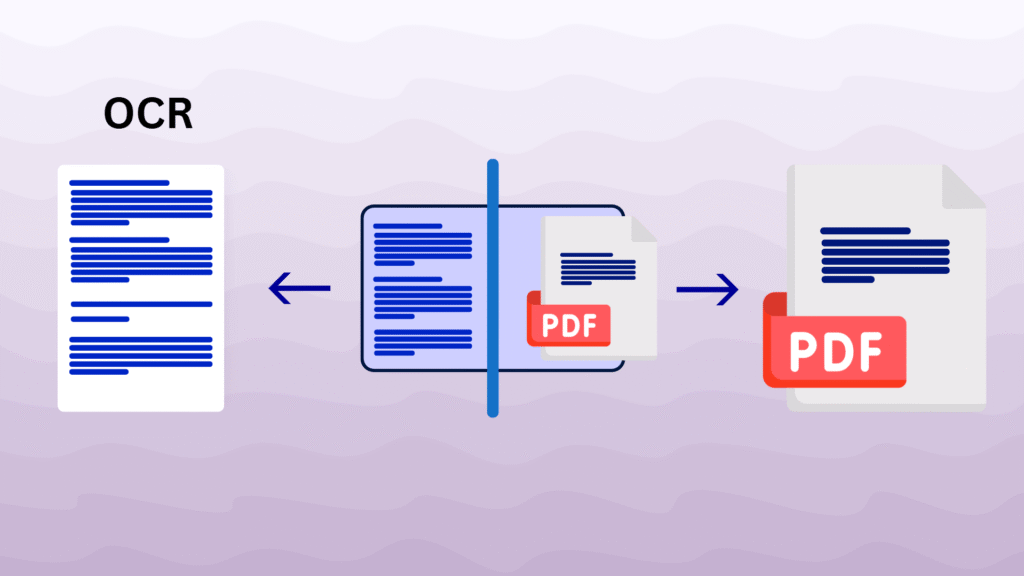
What if your PDFs could talk back, revealing every hidden Word, letting you search through mountains of information in seconds, and even edit content you thought was locked forever? That’s the power at the heart of OCR vs Standard PDF Conversion.
Standard conversion keeps files frozen, like snapshots in time. At the same time, OCR peels back the layers of scanned documents, image-heavy reports, and dusty archives, turning them into living, searchable, and editable goldmines.
Curious how to unlock secrets buried in your documents and supercharge your workflow? Keep reading, what you discover could change the way you handle PDFs forever.
What Is the Difference Between PDF Suite Standard and OCR?
Digital documents can look simple on the surface, but under the hood lies a vast difference between simple file conversion and intelligent recognition technology. Understanding OCR vs Standard PDF Conversion is about realizing whether your workflow stops at layout preservation or reaches deep into content accessibility and usability.
- Standard PDF Conversion
Standard PDF conversion is like moving furniture from one room to another; the items remain intact, but nothing changes inside them. This approach handles:
- Converting digital PDFs into formats like Word, Excel, or PowerPoint
- Preserving layout, fonts, and images without interpreting the content
- Quick conversion for documents that are already digitally generated
- Limited usability for scanned or image-heavy documents
This method works best when the source file already contains selectable text, like reports exported from Word or web pages saved as PDF. It’s efficient, but it doesn’t unlock hidden data.
- What is OCR in PDF?
Optical Character Recognition (OCR) is the technology that allows machines to “read” text inside images, scanned documents, or even handwritten notes. Using text recognition technology, OCR converts image-based files into actionable content.
- Detects letters and words from image-based PDFs and scanned files
- Enables PDF text extraction, making content searchable and editable
- Employs algorithms and AI for higher accuracy across languages
- Essential for transforming legacy archives, printouts, or forms into digital content
OCR bridges the gap between visual data and meaningful, actionable text, opening possibilities for automation, indexing, and editing that standard conversion cannot achieve.
How to convert a PDF to OCR?
Turning flat, static PDFs into usable, dynamic documents requires understanding OCR vs. standard PDF Conversion and knowing which approach to use for your goals. Below are the most effective methods, each explained with step-by-step instructions and practical tips.
- Convert Existing PDF to OCR PDF
When you have a PDF created from scans or images, you can apply OCR to unlock the text inside.
For example, a scanned company report from 2015 can now be searched for keywords, enabling instant retrieval of old data without manual reading.

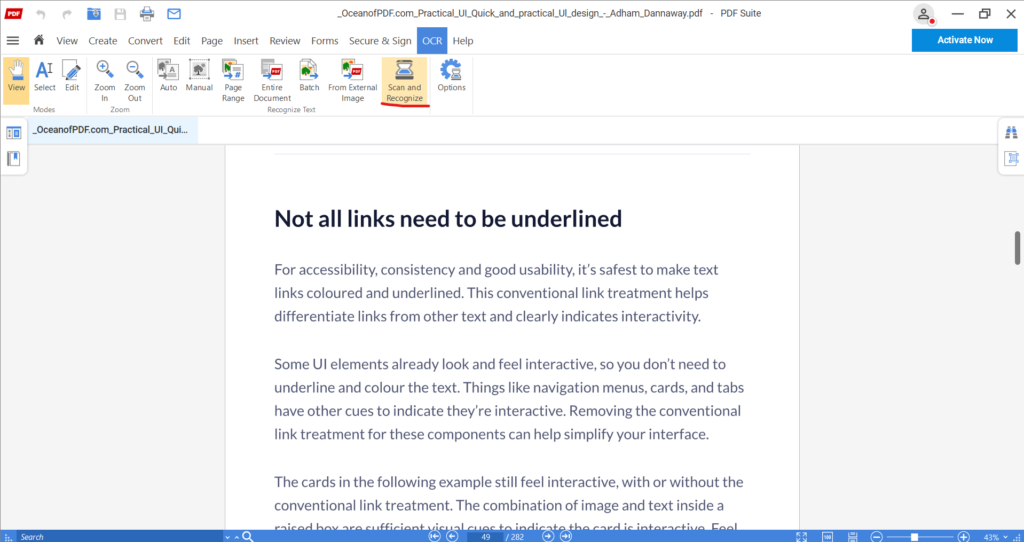
- Open the PDF in an OCR-compatible editor. Tools like PDF Suite Pro or Adobe Acrobat Pro allow direct recognition.
- Select “OCR Process” from the toolbar. This signals the software to scan the visual content for text.

- Choose the correct language and recognition settings. Languages affect accuracy; select multiple if needed.
- Start the recognition engine. Each page is analyzed for text patterns, letters, and numbers.
- Verify the results and correct errors. Some characters may be misread due to font styles or image quality.
- Save as a searchable or editable PDF. The document now allows text search, copying, or direct editing.
- Scan to PDF OCR
When your document exists only in paper form, scanning it directly into an OCR-friendly PDF is highly efficient. As an example, an archived contract from a decade ago can be scanned and instantly indexed, making old paper records digitally accessible.
- Place the physical document in a scanner or use a smartphone with high resolution. Ensure clarity to enhance recognition.
- Select “Scan to PDF” mode. This creates a base file suitable for OCR.
- Enable “Text Recognition” before scanning. This tells the software to analyze each page in real-time.
- Preview and adjust settings. Brightness, contrast, and DPI (300+) are crucial for accurate recognition.
- Run OCR on all scanned pages. Each character is identified and converted into text.
- Save or export. You can now generate editable scanned documents or searchable PDFs for easy retrieval.
- Convert to Searchable PDF
Not every project requires editing; sometimes you just need to find information fast. Converting PDFs to a searchable format is perfect for research, libraries, or corporate archives. Imagine a library of scanned articles can become fully searchable, enabling researchers to locate specific terms across hundreds of pages in seconds.
- Open your PDF in an OCR tool.
- Select “Make Searchable PDF.” This focuses on indexing text without changing the visual layout.
- Choose indexing options (full page or selective pages).
- Run OCR across the document. The software detects all textual elements, including headers and footers.
- Verify keyword search functionality. Ensure all terms are searchable.
- Save your searchable PDF. Now, pressing Ctrl+F lets you locate any text instantly.
- Convert to Editable PDF
If you need full control, turning a static page into an editable document is the ultimate goal. For instance, old invoices or receipts can be edited to correct amounts or dates, turning static historical data into actionable financial records.
- Load the scanned or image PDF into your OCR editor.
- Select “Editable Output.” Most software will label this clearly.
- Analyze document layout. Columns, paragraphs, and tables are recognized.
- Adjust formatting preferences. Preserve fonts, headers, or overall page structure.
- Review recognition results. Correct misread letters or symbols before saving.
- Export as an editable PDF or Word. Now, you can directly update content without retyping.
When to Use OCR vs Standard PDF Conversion in Your Workflow?
Choosing between Standard PDF Conversion vs OCR depends on the type of document, the source format, and the specific tasks that need to be accomplished.
Standard PDF conversion works perfectly for digital files where the text is already selectable, and the primary goal is to preserve layout, share content, or change formats between Word, Excel, or PowerPoint.
For documents that are only available as images, such as historical reports or scanned notes, using an OCR PDF converter can unlock the text for searching and editing, while converting a scanned PDF to Word makes it fully editable for modern workflows.
OCR, on the other hand, is essential for scanned or image-based documents that require searching, editing, or automated extraction of content, turning previously static files into fully usable digital resources.
Selecting the right approach between OCR vs standard PDF conversion ensures efficiency, accuracy, and better management of both current and legacy documents.
| When to Use Standard PDF Conversion | When to Use OCR |
| Digital documents where the text is already selectable and does not need further recognition. Examples include reports exported from Word, spreadsheets converted to PDF, or presentations saved in PDF format. | Scanned contracts, invoices, printouts, legacy archives, or any documents that exist only as images or paper copies. These documents cannot be searched or edited without OCR technology. |
| Quick format changes, such as converting Word to PDF, PDF to PowerPoint, or Excel sheets into a PDF report for sharing. This requires minimal processing time and preserves the original layout. | Workflows that require searchable or editable content. For example, businesses that need to find specific clauses in contracts, update archived reports, or edit old scanned invoices. |
| Simple sharing or archiving where editing, searching, or data extraction is not necessary. Standard PDF is reliable for creating visual copies that maintain the design and formatting of the original document. | Automation tasks such as indexing, extracting tables, pulling metadata, or integrating content into content management systems and accounting software. OCR allows these previously static documents to be part of a modern digital workflow. |
| – | Research, library, and archival use cases where keyword search across large collections of scanned articles or manuscripts saves enormous time and effort. |
Finally
Understanding OCR vs Standard PDF Conversion allows businesses and individuals to make informed choices, ensuring that every document, whether newly created or scanned from years ago, serves its purpose effectively.
Businesses, educators, and individuals who adopt recognition technology gain a strategic advantage, access to actionable data, faster workflows, and digital preservation of their most valuable information.
Tell us, which method revolutionized your document workflow? Have you used an OCR PDF converter for critical projects? What feature would make text recognition technology even smarter?