

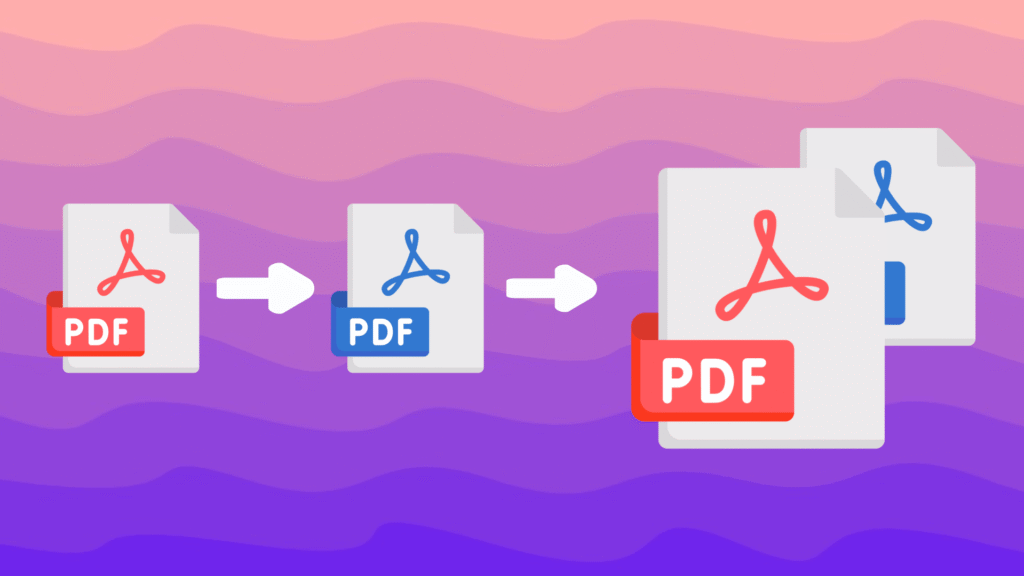
When working on a project, you might end up with several PDF files, each packed with important information. But what if you’re asked to merge multiple PDF files into one polished, cohesive document?
It could be a presentation, a report, or any project where clarity and professionalism matter. Combining these files manually can be a nightmare, but it doesn’t have to be. Luckily, there are simple and free methods to quickly merge PDFs, saving you time and effort.
Curious to know how? Stay with us to learn the best ways to merge your files and present your work in a clear, organized way.
(6) Practical Methods for Merging Multiple PDF Files
When working with multiple PDF documents, the need to merge multiple PDFs into one unified document is common. Whether you’re handling a small number of files for a quick project or merging large PDFs with complex content, there are various solutions available.
Online tools offer fast and convenient ways to merge multiple PDF files without the need for software installation, while desktop applications provide more flexibility, especially for handling large documents and advanced editing tasks.
Let’s explore the top methods for merging PDFs, so you can find the perfect tool for your needs.
- Free Online PDF Merger Tools
Merging multiple PDF files with free online tools is an easy and convenient option, especially for users who don’t want to install any software. These tools are web-based and allow you to quickly combine PDFs from any device with an internet connection.
This solution works well for light and quick tasks, where the user needs to merge just a few documents without advanced features or heavy customization. Examples: SmallPDF, CombinePDF, ILovePDF, PDF Merge.
Steps to Merge PDFs for free
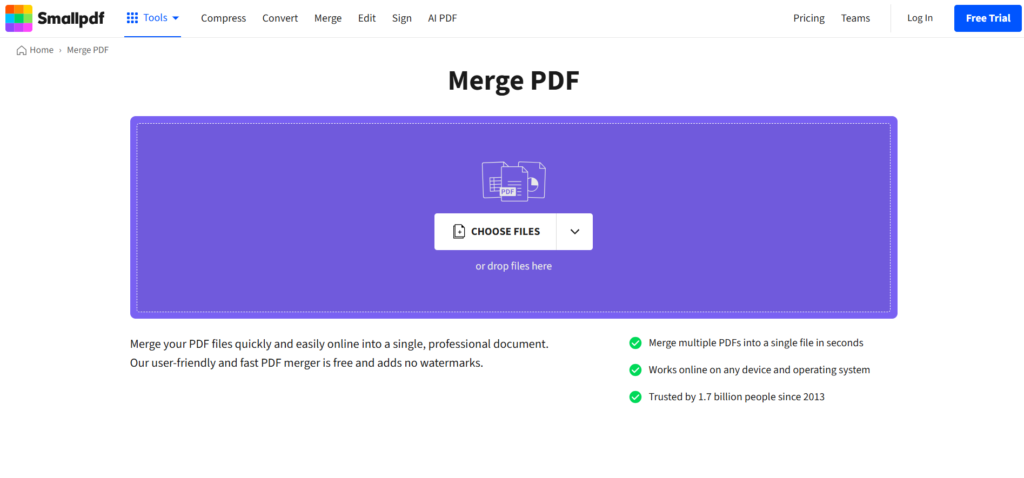
- Click on the “Upload” button to select the PDF files you want to merge.
- Arrange the files in the order you want them to appear in the final document.
- Click on “Merge” or “Combine” to process the files.
- Download the merged PDF once the process is complete.
Benefits
- No software installation: Simply access the tools from any device with a web browser.
- Free PDF editor; most online tools offer free basic merging features.
- Simple and user-friendly: The process is straightforward and doesn’t require technical skills.
Limitations
- Many free tools have file size or number of files limits for merging.
- These tools only work when you’re online.
- Advanced features like editing, password protection, or compression might not be available.
- Desktop Software
For users who need more control and features, desktop software provides a robust solution to merge multiple PDF files. These tools are ideal for those dealing with large, complex, or sensitive documents and need more than just basic merging.
With desktop applications, you can manipulate files in more advanced ways, including batch merging, page editing, and applying security settings. Examples: Adobe Acrobat Pro, PDFsam, Nitro PDF Pro, Foxit PDF Editor.
How to Merge PDFs Using Desktop Software
- Download and install the PDF combiner software of your choice (e.g., Adobe Acrobat Pro or PDFsam).
- Open the program and select the “Merge PDFs” or “Combine PDFs” option.
- Add the PDFs you want to merge by clicking on “Add Files.”
- Rearrange the files in the correct order, if necessary.
- Click on “Merge” to combine the PDFs.
- Save the merged file to your desired location.
Benefits
- You can merge as many files as needed, no matter their size.
- Offers tools to edit, split, rotate pages, and apply security features.
- Batch merging allows for the merging of multiple files at once, which is useful for large projects.
Limitations
- You need to download and install the software on your computer.
- Advanced features may only be available in paid versions of the software.
- Desktop software requires storage space on your computer.
- Built-in Tools in Operating Systems
Both macOS and Windows offer built-in tools for merging PDFs, making it easy to combine documents without third-party software to merge PDFs on Windows/Mac. For macOS users, Preview is a powerful tool that simplifies the process, while Windows users can rely on PDFsam or other free tools for basic PDF merging.
Steps to Merge PDF (using Preview)
- Open the first PDF in Preview.
- Enable “Thumbnails” view from the “View” menu.
- Drag other PDFs into the Thumbnails pane.
- Rearrange the pages if needed.
- Save the combined document by going to “File” > “Export as PDF.”

On Windows (using PDFsam)
- Download and install PDFsam (free version).
- Launch the program and choose the “Merge” option.
- Add the PDFs you want to merge.
- Click “Run” to combine them into one file.
- Save the merged PDF.
Benefits
- macOS users can use the built-in Preview app.
- Perfect for casual users who need to merge PDFs without advanced features.
- These tools are already built into the operating system.
Limitations
- These tools don’t provide advanced options like page rotation or encryption.
- If you need more than just merging, you may have to use other software.

- Google Drive and Google Docs
If your PDFs are already stored in Google Drive, using tools like PDF Mergy is an efficient way to merge multiple PDF files directly from the cloud. This method is convenient if you already use Google Drive for file storage and want to avoid installing additional software. Examples: PDF Mergy (Google Drive Integration), PDF Merge.
Steps to Merge PDFs in Google Drive
- Upload the PDF files to your Google Drive.
- Open PDF Merge or another tool that integrates with Google Drive.
- Select the PDFs from your Google Drive that you want to merge.
- Rearrange the files if necessary.
- Click “Merge” to combine the PDFs and save the new file to your Google Drive or download it.
Benefits
- Everything is done directly within Google Drive.
- As long as you’re signed into your Google account, you can merge PDFs from any device.
- This method works well if your PDFs are already stored in the cloud.
Limitations
- Requires a Google account; you need to be logged into Google Drive.
- Tools like PDF Mergy may not offer advanced features such as compression or editing.
- Command Line Tools
Command-line tools like Ghostscript or pdftk are ideal for advanced users who want to automate the merging process, especially when dealing with large volumes of PDFs. These tools provide a lot of flexibility and are suitable for batch processing, where you need to merge a large number of files quickly. Examples: Ghostscript, pdftk.
Steps to Merge PDFs Using Command Line
- Install pdftk or Ghostscript.
- Open the command-line interface (CLI).
- Run the appropriate command, such as pdftk file1.pdf file2.pdf cat output merged.pdf or the equivalent for Ghostscript.
- Press Enter to execute the command.
- The merged PDF will be saved to the specified location.
Benefits:
- Command-line tools offer advanced customization for users with technical skills.
- These tools can quickly process large numbers of files in one go.
- No GUI; for users who prefer text-based interfaces, this can be faster and more efficient.
Limitations
- Requires technical knowledge; these tools are not user-friendly for beginners.
- No graphical interface; Command-line operations can be difficult for users unfamiliar with them.
- Not suitable for casual use; these tools are best for power users or those working with automation.
- Mobile Apps
Suppose you need to merge multiple PDF files while on the go, mobile apps are a great option. Available for both iOS and Android, these apps allow you to merge PDFs directly from your smartphone or tablet, providing a portable solution for combining documents. Examples: PDF Merge (Android), Adobe Acrobat Reader (iOS/Android).
Steps to Merge PDFs Using Mobile Apps
- Download a PDF merging app like PDF Merge or Adobe Acrobat Reader.
- Open the app and select the “Merge PDFs” option.
- Choose the PDFs you want to combine from your mobile device.
- Arrange the files in the correct order.
- Tap “Merge” to combine the PDFs.
- Save the new merged PDF or share it directly from your device.
Benefits
- Ideal for merging PDFs on the go.
- Mobile apps are easy to use and don’t require technical skills.
- Merging can be done directly from your smartphone or tablet.
Limitations
- Mobile apps may not offer the advanced features found in desktop software.
- These apps may struggle with very large files.
- Some apps may require payment for advanced features.
By using any of these methods, you can easily combine PDF files online according to your needs and preferences, whether you’re working online, offline, or on the go. Each solution has its unique strengths and limitations, so choosing the best method depends on your specific requirements.
In conclusion
Merge multiple PDF files is an essential skill for organizing documents, whether for work, school, or personal use. With free tools available online or built-in software for Windows and Mac, combining PDFs has never been easier.
By using simple steps, you can quickly merge files, improve document presentation, and save time. Start merging your PDFs today and enjoy more streamlined, professional results!
What do you think of the tools we introduced? Did the methods we described help you? Which tool or method worked best for you? What features would you like to see added to PDF merging tools? We’d love to hear your thoughts!

2 Responses
Good content
Nice content