
Have you ever felt stuck with a giant PDF that refuses to move, stuck in your storage, stuck on your device, and most painfully, stuck in your email drafts because it’s too big to send?
What if I told you there’s a way to compress PDF files for email so you can unleash them into the inbox of anyone, instantly and painlessly?
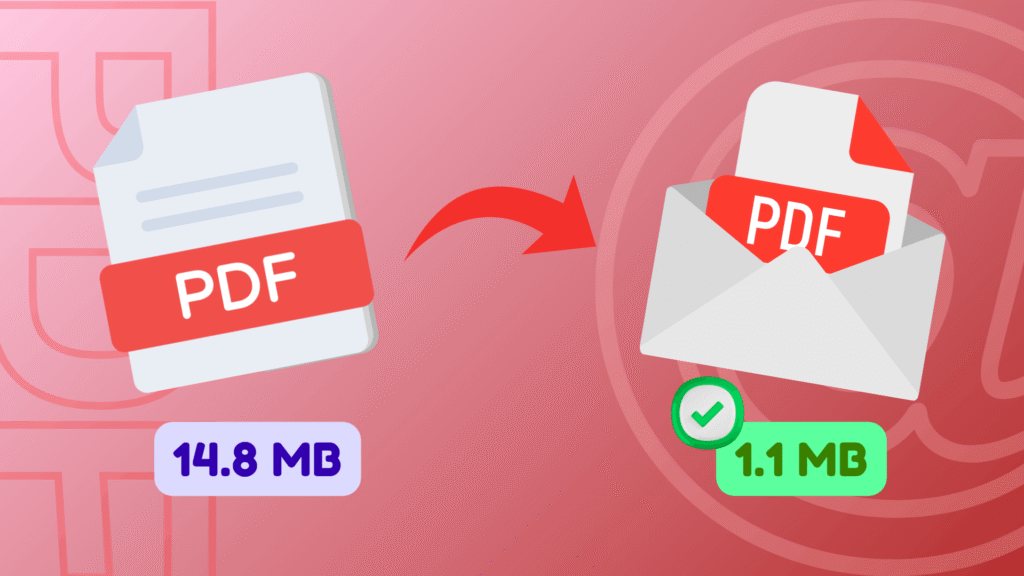
Are you curious how something that weighs hundreds of megabytes can suddenly shrink to a few megabytes without losing clarity or readability? Keep reading, you’re about to unlock the tricks that pros use every day!

Why Compressing Heavy PDF Files for Email Matters?
Sending a PDF via email might seem simple, but it can quickly become frustrating if your file is too large. Most email services have strict attachment limits that can block oversized files.
For example, Gmail and Yahoo Mail usually cap attachments at around 25MB, while Outlook often rejects files larger than 20MB. Many corporate email systems impose even stricter limits. If your PDF file is too large to email, your message may bounce back or fail to send, leaving both you and your recipient frustrated.
When a large PDF is rejected, it does more than just annoy the sender. It interrupts workflow, delays communication, and reduces productivity. This is true whether you are a student submitting homework or a professional sending an important contract.
That is why knowing how to efficiently compress PDF files for email is one of the most valuable skills you can learn online. Mastering this skill ensures that your documents are always ready to send, without technical setbacks slowing you down.
How to Compress PDF Files to Send Large PDFs by Email?
Compressing PDF for email is not magic; it’s about smartly reducing resource-heavy elements and optimizing the file so it takes up less space while staying perfectly readable.
Learning how to reduce PDF size ensures that your emails always go through, no matter the attachment limits.
There are two main approaches to reducing PDF file size:
- Use specialized tools and software
- Apply techniques and best practices for PDF optimization
Combining both approaches usually produces the best results. Below, we’ll cover the most reliable tools and methods available today.
Top Free PDF Compression Tools to Compress PDF Files for Email
Whether you need a PDF compressor online or a full-featured software tool, the following options are excellent.
Each has unique strengths depending on your needs:

- Smallpdf (Simple & Fast Compression)
Smallpdf provides an online PDF compressor that lets you drag and drop your file, choose basic or strong compression, and download a smaller version in seconds. No installation or signup is required.
- Very easy for beginners
- Works on any device via a browser
- Secure; files are deleted after processing
Smallpdf is perfect for anyone who needs a quick, reliable way to shrink a PDF file with minimal effort.

- Adobe Acrobat Online Compressor
Adobe’s online tool was created by the makers of PDF themselves. It compresses large files, even up to 2GB, with a simple upload and download process.
- Produces professional results
- Works on all major platforms
- Maintains a good balance between size and quality
It’s ideal for larger professional documents, helping you optimize PDF documents without losing readability.

- iLovePDF (Flexible Compression Levels)
iLovePDF provides multiple compression levels, including extreme, recommended, or less aggressive, letting you choose how much to compress PDF files for email versus preserving quality.
- Customizable settings for images and text
- Easy-to-use interface
- Supports cloud storage like Google Drive and Dropbox
Perfect when you want to compress scanned PDFs or other image-heavy documents.
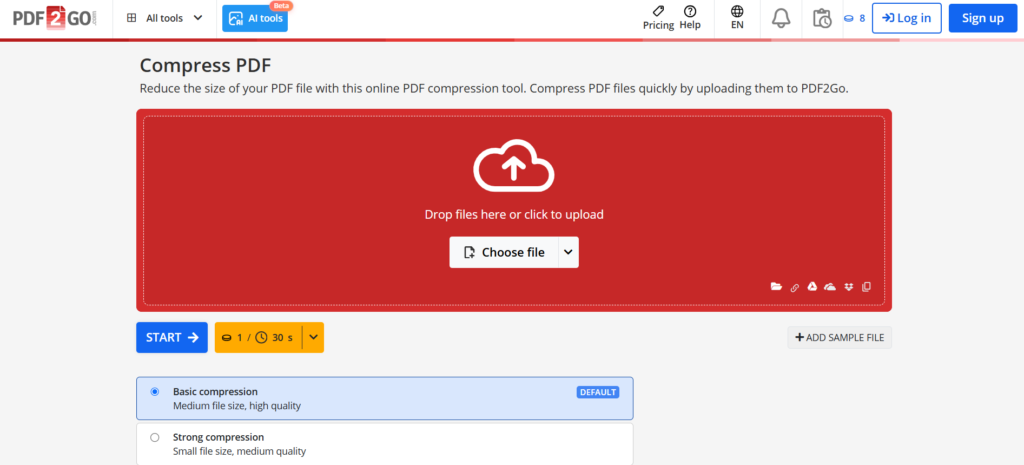
- PDF2Go (All-in-One PDF Optimizer)
PDF2Go is more than a compressor. It allows you to merge, split, and edit PDFs while managing file size.
- Great for multi-purpose PDF tasks
- Secure online processing
- Useful for reorganizing pages or removing unnecessary content
It helps you lower PDF resolution and compress files effectively.

Foxit offers a straightforward and fast PDF compressor. Upload your file, compress it, and download without fuss.
- Quick and secure
- Works across devices
- Maintains file safety
A solid option if free PDF compression tools with speed and security are your priority.
Other Ways to Compress PDF Files for Email
Even the best tools have limits. Here are additional strategies for large files:
- Zip Compression
Right-click your PDF and choose “Compress into ZIP.” While it doesn’t reduce internal size as much as a specialized compressor, it often brings your file under the email PDF size limit.
- Reduce Images & Graphics
High-resolution images and scanned pages are usually the biggest contributors to large files. Replacing them with lower DPI images or removing unnecessary visuals can drastically reduce file size. This method also helps lower PDF resolution.
- Use Cloud Links Instead of Attachments
If compressing PDF files for email still isn’t enough, upload your PDF to Google Drive, Dropbox, or OneDrive, and send the link. Most email services integrate cloud storage, letting you share files safely without worrying about size.
- Split the PDF
If your file is still too large, split it into logical sections or chapters. Tools like Smallpdf and PDF2Go make this easy. Each smaller file will then meet the email PDF size limit requirements.
How Does Compression Work? (Simple Explanation)
Tools help compress scanned PDFs and maintain readability. Advanced compressors strike a balance between file size and quality so your PDFs stay crisp and clear. When you compress PDFs:
- Images are optimized to reduce size without losing quality
- Redundant metadata and unused elements are removed
- Fonts and internal structures are embedded efficiently
- Resource-heavy elements are streamlined
Common Mistakes to Avoid When Reducing PDF File Size
Even with great tools, mistakes can make the process of compressing PDF files for email ineffective:
- Compressing too much: Text and images can appear blurry or messy
- Using insecure sites: Always choose reputable PDF compressor online tools
- Ignoring email limits: Verify your file meets the email PDF size limit
- Not checking results: Always open the compressed file to ensure everything is readable
By following safe practices, you can confidently send PDFs via email without delays or frustration.
Compressing heavy PDFs is no longer optional; it’s essential.
By using free PDF compression tools, PDF compressor online, reducing images, splitting files, or sharing via cloud links, you can easily manage file size. Whether you’re a student, professional, or frequent document sender, mastering how to reduce PDF size ensures smooth, stress-free communication.
Finally
If you need to compress PDF files for email, you now have multiple paths to success, from quick online compressors to flexible tools or powerful workflows. Whether your goal is to stay under strict email attachment limits or simply make your document easier to share, these strategies work consistently.
Remember, PDFs that are optimized and lightweight travel faster, display better, and create a smoother experience for both you and your audience.
Ready to try it? Tell us what worked for you! Which tool did you choose? Did compressing your PDF make it email‑ready? Want tips on compressing scanned PDFs, too? Got a tool recommendation of your own?