
You click “send” on an important PDF, and just seconds later, a wave of doubt hits you—who else could open this file if it’s forwarded or intercepted? In today’s fast-moving digital world, even a small oversight can expose valuable information.
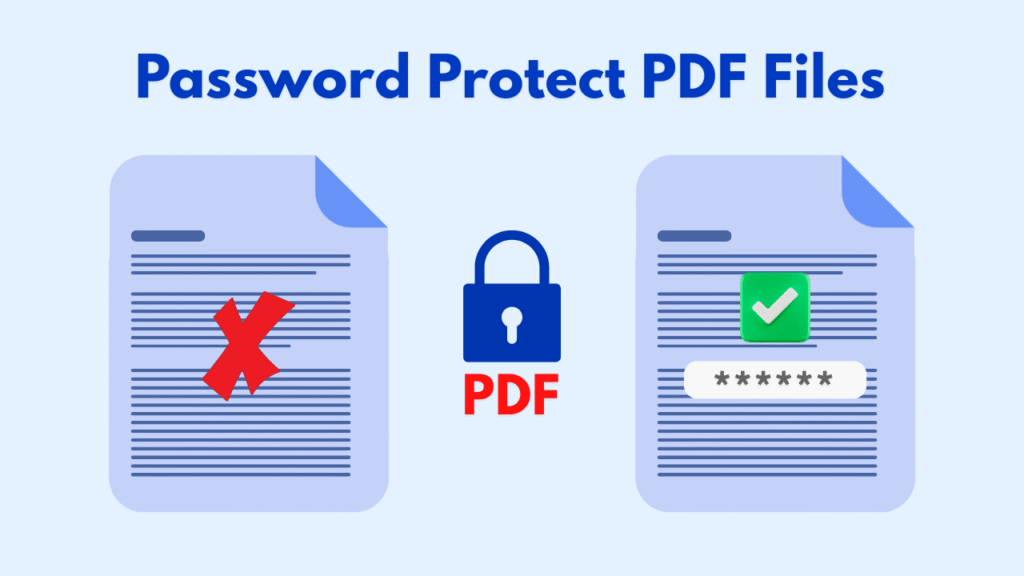
Password Protect PDF files is no longer just a technical feature; it’s a smart habit for anyone who shares documents online. From freelancers and students to businesses handling critical data, curiosity often starts with one question: How safe is my PDF really?
This guide answers that question step by step, revealing practical methods, real benefits, and proven techniques that turn uncertainty into confidence and control.
Why You Should Password Protect PDF Files?
When you decide to add security to your documents, you take ownership of how your information is shared and accessed. Choosing to password protect PDF files mean you are actively reducing the risk of leaks, misuse, or accidental exposure.
PDFs are commonly used for contracts, reports, invoices, and personal records, making them a frequent target for unauthorized access if left unprotected.
- Password-protecting PDFs allows you to control exactly who can open a file, even after it has been shared multiple times.
- Using a secure PDF online approach helps you apply protection quickly without advanced technical skills.
- Strong PDF password protection ensures that sensitive data remains private during email transfers or cloud storage.
- When you lock a PDF with a password, you prevent unwanted editing, copying, or printing of the content.
- Advanced options that encrypt PDF documents make the file unreadable to anyone without the correct credentials.
- Reliable online PDF security tools provide professional-grade protection while remaining easy to use.
- These measures actively prevent unauthorized access to PDFs, lowering the risk of data breaches.
- Proper security helps secure sensitive documents such as legal agreements, financial records, and personal IDs.
- Modern services offering PDF encryption online protect files even when accessed remotely.
- Overall, these practices are essential to protect confidential files in both personal and professional environments.

How To Password-Protect a PDF Document?
To effectively password protect PDF files, it is important to understand that there is more than one reliable method. Different users have different needs, and the best approach depends on your workflow, device, and security expectations.
Below are the most practical and commonly used methods, each explained with clear steps.
- Using Online Tools
This method is ideal for users who want speed and convenience without installing software. This approach is perfect for quick tasks and remote work scenarios.
- Open a trusted online PDF protection service in your browser.
- Upload your PDF file from your device or cloud storage.
- Enter a strong password and confirm it carefully.
- Allow the platform to apply encryption to the document.
- Download the protected PDF and store or share it securely.
- Using Desktop Software
Desktop software offers greater control and is often preferred for highly sensitive documents. This way to password protect PDF files is well-suited for business and legal use cases.
- Open your PDF in professional PDF software such as Adobe Acrobat Pro.
- Navigate to the security or protection settings menu.
- Choose the option to set a password for opening the document.
- Define permissions for editing, printing, or copying if available.
- Save the document to apply all security settings.
- Password-Protect a PDF on Windows and macOS.
Both major operating systems provide built-in options for basic PDF protection. This option works well when you want a simple, no-download solution.
- Step 1 (Windows): Open the PDF and select “Print,” then choose “Microsoft Print to PDF” if supported with security options.
- Step 2 (macOS): Open the PDF in Preview and select “File,” then “Encrypt.”
- Step 3: Create and confirm a strong password.
- Step 4: Save the encrypted version of the file.
- Using Microsoft Office
If your PDF originates from Word, Excel, or PowerPoint, you can secure it before conversion. This approach to password protect PDF files is efficient and often overlooked by users.
- Open the original file in Microsoft Office.
- Go to “File,” then “Save As,” and choose PDF as the format.
- Select “Options” and enable password encryption.
- Enter and confirm your password.
- Save the file as a protected PDF.
- Advanced PDF Protection with Permissions & Restrictions
For users who need more than just a password, advanced settings provide extra control. This is ideal for organizations managing shared but restricted documents.
- Open the PDF in professional security-enabled software.
- Set a user password for opening the document.
- Set an owner password to control editing, printing, and copying.
- Review all permission settings carefully.
- Save the document with the applied restrictions.
How to Remove or Change a Password-Protected PDF?
Managing access over time is just as important as setting it initially. When you password protect PDF files, you may later need to update or remove the password based on new requirements.
Steps to Change the Password
- Open the PDF using the current password.
- Access the document’s security or protection settings.
- Select the option to change the password.
- Enter the existing password, then create a new one.
- Save the document to apply the updated password.
Steps to Remove the Password
- Open the PDF with the correct password.
- Go to the security settings panel.
- Disable password protection.
- Confirm the change and save the unprotected file.
Always ensure that removing a password aligns with your data security needs.
Tips & Practices for Strong PDF Passwords
To maximize security when you use PDF password protection, strong password habits are essential. A weak password can compromise even the best protection method. These practices help maintain long-term document safety.
- Use long passwords with a mix of letters, numbers, and symbols.
- Avoid common words, names, or predictable patterns.
- Create unique passwords for different documents.
- Store passwords securely using a trusted manager.
- Change passwords periodically for long-term documents.
- Share passwords through secure channels only.
Wrap up
Protecting your PDFs is a proactive step toward digital responsibility and peace of mind. By understanding the reasons behind document security, applying the right method, and following strong password practices, you gain full control over your shared information.
Whether for personal use or professional workflows, learning how to password protect PDF files ensures your data stays private, intact, and trusted wherever it travels.
Now it’s your turn to act; try one of these methods today and secure your next PDF. Share your thoughts or questions in the comments. Tell us which method worked best for you? Request more advanced guides if you want to level up your document security.